
Event manager frontend quick start
This guide helps event administrators create events, manage registrations, and connect QR workflows. It is a short introduction for first time setup and daily use. Add your established links and screenshots where noted.
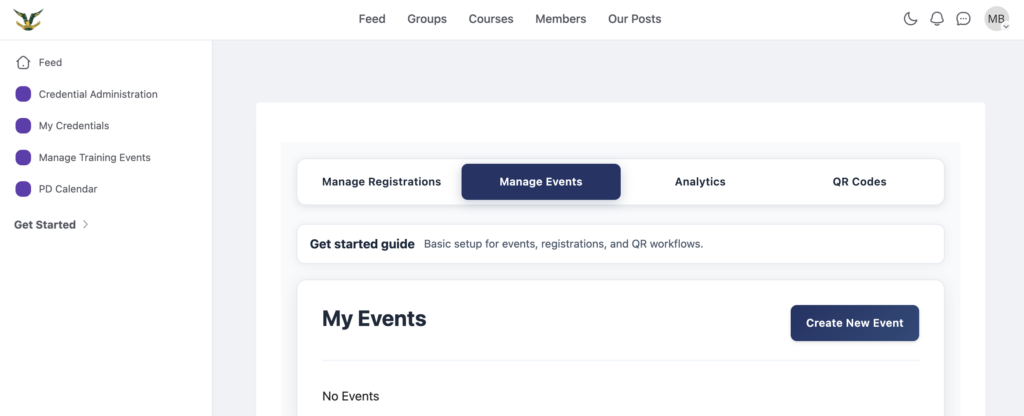
Your Events Manager Dashboard can be found here: https://drsd.k12leaders.com/manage-events/
How the parts connect
The K12Leaders credential manager can award badges, certificates, PDPs, and other credentials to individuals for a variety of professional development activities. Scheduled events, such as trainings, meetings, conferences, and classes can be created and managed here. Registrations track who plans to attend or has attended. A credential definition can be linked to an event, which allows QR workflows to issue awards tied to that definition. Administrators manage event setup, registration workflows, and QR codes. Attendees use their accounts to register and view their credentials in the user dashboard.
First setup
- Create or confirm a credential definition in the credential manager so the event can link to it.
- Create an event in the events manager and save it, which enables the credential selection and QR tools.
- Select the credential definition for the event and save again, which stores the connection for QR use.
- Generate the QR code for attendance and keep it available for the session.
Create an event
Open the events manager, choose create event, and complete the basic details. Save the event so the credential selection and QR tools are available. Keep the event title and dates aligned with the credential you plan to issue.
Link a credential to an event
Use the credential selector in the events manager to connect the event to a credential definition. Save the event so the selection is stored. This connection allows the QR workflow to issue awards for that definition.
Generate and use QR codes
Open the QR section, choose create QR for the event, and copy the QR code or link for distribution. Use the QR code during the session to capture attendance. After the session, review registrations and confirm awards where needed.
Review results
Use the registrations view to confirm attendee status and to verify counts. Use the user dashboard to confirm awards appear with the correct definition and dates.